
Event technical checklist: sound, lighting, video, Wi-Fi, and Plan B
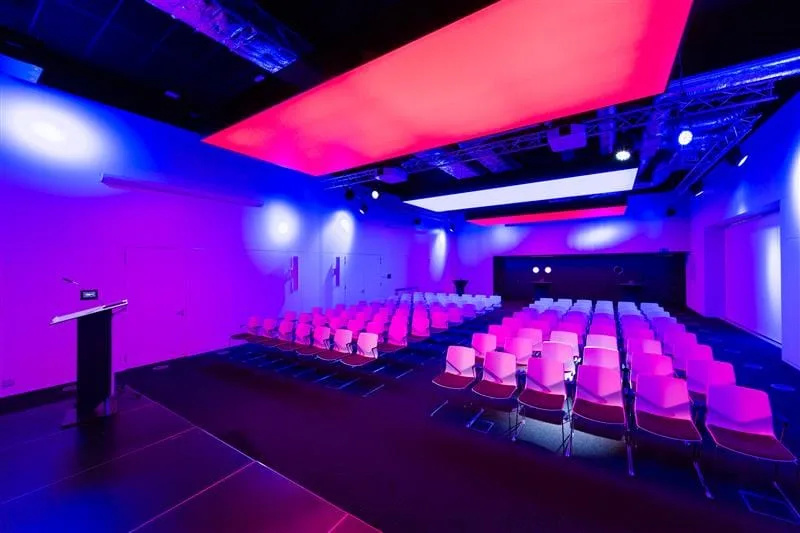
A crackling microphone, an illegible presentation, or an unstable connection can quickly distract from the content. However, most of these problems can be avoided with structured preparation. An event’s technical checklist isn’t just about verifying the presence of a screen and a few microphones. It must be based on the program, the number of participants, the room layout, and the intended uses. A conference with multiple speakers, a product launch, an interactive training session, and a hybrid event all have different requirements.
Here are the key points to check to ensure the sound, lighting, video, Wi-Fi connection, and backup solutions are in order.
1. Start with a detailed technical brief
Before selecting equipment, you must define what it needs to be able to do. The technical manager must receive a sufficiently detailed version of the program—not just the start and end times.
The brief should specify the following:
- The number of expected participants.
- The venue layout.
- The number of speakers present at any given time.
- Speeches from the stage and from the audience.
- Any planned presentations, videos, or demonstrations.
- Remote participants or speakers.
- Requirements for filming, streaming, or recording.
- Changes to the setup throughout the day.
- Requirements for interpretation or subtitling.
- Schedules for setup, rehearsal, and teardown.
Also designate one person to approve technical decisions. Without a clearly identified point of contact, a last-minute change may be requested by several people with conflicting instructions.
To Verify
- The technical program matches the latest version of the general program.
- Each segment lists the presenters, audio sources, and content to be displayed.
- The responsibilities of the venue, the organizer, and the service providers are defined.
- The contact information for those in charge is compiled in a list accessible to the team.
- A running order outlines the schedule, speaking segments, media, and technical changes.
2. Sound: Check the Entire Audio Chain
An audio system is about more than just speaker power. It is essential to ensure that every voice is captured clearly, distributed evenly throughout the room, and, if necessary, transmitted to remote participants.
The type of microphone depends on its intended use:
- A lavalier microphone leaves a speaker’s hands free.
- A handheld microphone is suitable for quick exchanges and questions from the audience.
- A table microphone may be appropriate for a panel discussion or a meeting.
- A lectern microphone is suitable for a fixed speaking position.
The number of microphones must be determined based on the most demanding scenario. A panel of four people followed by a question-and-answer session, for example, requires a different solution than a presentation by a single speaker.
The room also affects the outcome. Glass surfaces and hard materials can increase reverberation. The placement of speakers and microphones must therefore be tested in the actual setup, not just from the control room.
Things to Check
- Each speaker has a suitable microphone.
- An additional microphone is available for questions from the audience.
- A backup microphone is ready for use.
- Charged batteries are available as a backup.
- The speakers cover the entire room without any dead zones.
- The volume is tested from the first and last rows.
- Videos and jingles are played at the correct volume.
- Monitor speakers do not cause echoes or feedback.
- The audio sent to the stream or recording is controlled separately.
- Speakers know how to hold or position their microphones.
Conduct the sound check with the actual speakers whenever possible. A rehearsal allows you to adjust microphone placement and also to review a few simple rules: speak directly into the microphone, avoid handling it unnecessarily, and wait until it is activated before beginning.
3. Lighting: Light the People, Not Just the Room
Lighting must meet three needs: allow the audience to comfortably follow the presentation, make the speakers visible, and create an atmosphere suited to the event’s format.
A room that is sufficiently lit for a dinner isn’t necessarily so for a video recording. Conversely, significantly dimming the lights to improve screen contrast can make the speakers difficult to see.
It is therefore important to distinguish between five types of lighting:
- General room lighting.
- Stage or presentation area lighting.
- Lighting required for the cameras.
- Decorative lighting.
- Lighting for walkways and exits.
Test the different lighting conditions with the screens turned on. Also verify that the spotlights do not interfere with the speakers or the audience and that they do not create glare on screens, glasses, or shiny surfaces.
Things to check
- The speakers’ faces remain properly lit.
- Slides maintain sufficient contrast.
- The lighting is compatible with video recording.
- Multiple lighting scenarios are programmed in case the event format changes.
- Podiums, panel tables, and demonstration areas are lit.
- Walkways and emergency exits remain visible.
- Suspended elements and power supplies are installed by qualified personnel.
- A contingency plan is in place in case of a projector or lighting control failure.
Final adjustments must be made under actual conditions: furniture in place, screens active, decor installed, and exterior light comparable to what is expected during the event.
4. Video: Plan for Sources, Formats, and Visibility
The term “video” covers several needs: slide projection, movie playback, demonstration displays, recording of speakers, stage monitor feeds, videoconferencing, or live streaming.
Start by making a list of all sources:
- The main computer.
- The backup computer.
- Videos embedded in presentations.
- The camera or video control room.
- Remote speakers.
- The monitor for speakers.
- The timer or display for speakers.
Request the presentations in advance. They must be tested on the actual equipment that will be used. Check the image format, fonts, animations, links, embedded videos, and any reliance on an internet connection.
A presentation that is perfectly legible on a laptop may become difficult to follow from the back of the room. The screen size, the height at which it is mounted, and the lines of sight must be adapted to the depth of the room. People seated behind a presenter, a piece of scenery, or a column must maintain an unobstructed view.
Items to Check
- The output format and resolution have been confirmed with the service provider.
- All presentations have been centralized and tested.
- Videos are stored locally and do not rely on an online link.
- The necessary adapters are available.
- Cables are secured and do not pose a tripping hazard.
- The content is legible from the back and sides of the room.
- A monitor is provided so speakers can view their slides.
- A backup computer contains copies of all files.
- Notifications, automatic updates, and screensavers are disabled.
- Broadcast and recording rights have been verified.
For an event streamed online, also consider accessibility. Live captions allow people who are deaf or hard of hearing to follow the presentations. Materials can also be sent in advance to interpreters, captioners, and participants who use assistive technologies.
5. Wi-Fi: Plan for Simultaneous Use
Simply asking if the venue has Wi-Fi isn’t enough. The key question is whether the network can handle the anticipated usage patterns at the exact times they occur.
A room with 200 people, where each person occasionally checks their email, does not generate the same network load as a training session where all participants are downloading a file, responding to a survey, and using an interactive platform at the same time.
Wi-Fi quality depends on available bandwidth, but also on the number of connected devices, their location, and the network design. A simple speed test conducted in an empty room therefore does not guarantee a satisfactory experience during the event.
For critical uses, such as streaming or a remote speaker’s presentation, opt for a dedicated wired connection. If possible, separate the production network from the Wi-Fi network intended for participants.
Videoconferencing platforms generally recommend several megabits per second for both upload and download speeds to transmit high-definition video. These values apply to a single use case and do not replace a network design that accounts for other data flows, connected devices, and a safety margin.
To be verified
- The likely number of connected devices is estimated.
- Simultaneous uses have been identified.
- Coverage has been tested in all relevant areas.
- Upload capacity is sufficient for streaming.
- The production team has a separate or high-priority network.
- Critical workstations use a wired connection.
- Wi-Fi login credentials can be easily provided.
- The guest network meets security requirements.
- A test has been conducted from both the stage and the control room.
- A backup connection has been tested in the building.
6. Plan B: Prepare Concrete Responses
An effective Plan B is more than just the phrase “the technician will be on site.” It describes plausible incidents, available solutions, and the person authorized to make a decision.
For each essential function, ask three questions:
- What could happen?
- What solution can be activated immediately?
- Who decides to activate it?
The following scenarios, in particular, must be considered:
- A microphone malfunction.
- A failure of the main computer.
- The inability to play a video.
- Loss of internet connection.
- The absence or delay of a remote presenter.
- A power outage.
- Loss of communication between teams.
- The temporary unavailability of a room or equipment.
A contingency plan must specify roles, lines of communication, and procedures to follow. Depending on the size of the event, it may also be necessary to provide backup batteries, alternative means of communication, or an emergency power supply for certain essential systems.
The Minimum Contingency Kit
- A computer containing all presentations.
- A local copy of videos and documents.
- A microphone ready to use.
- Charged batteries.
- Spare cables and adapters.
- A backup presentation remote control.
- A previously tested alternative internet connection.
- An offline version of the program outline and useful contact information.
- An alternative means of communication between organizers.
- A clear procedure for interrupting, adapting, or resuming the program.
Sharing a mobile data connection can serve as a temporary backup, but only if coverage has been tested inside the building. Do not assume that a mobile network can replace a professional connection for full-scale streaming.
7. Organize a Meaningful Technical Rehearsal
The rehearsal should not merely confirm that the equipment turns on. It should simulate the most complex parts of the program.
Test at least the following sequences:
- The opening of the presentation.
- The transition from one speaker to another.
- A question asked from the audience.
- Playing a video with sound.
- Connecting a remote speaker.
- Screen sharing.
- Switching to a backup setup.
- Communication between the control room and the venue manager.
The rehearsal should lead to concrete decisions. Each issue identified is assigned to a responsible person and given a deadline. A second quick check is then conducted before the audience arrives.
The final checklist before doors open
- The technical run-through is up to date.
- Responsibilities and contact numbers are confirmed.
- All microphones are working and the batteries are charged.
- The sound is clear throughout the entire venue.
- The various lighting scenes are programmed.
- Presentations and videos have been tested.
- Backup files are available offline.
- The screens are visible from all seats.
- Wired and Wi-Fi connections have been checked.
- Remote participant participation has been rehearsed.
- Subtitling and interpretation needs are covered.
- Cables, power supplies, and equipment are secured.
- Replacement equipment is immediately accessible.
- The team is familiar with contingency procedures.
- One person is clearly authorized to make technical decisions.
Conclusion
Successful technical preparation remains invisible to the audience. The sound is clear, content appears at the right time, and transitions flow naturally. This smoothness isn’t a matter of luck, but rather the result of a precise brief, realistic testing, and backup solutions that can be activated immediately.
Are you planning an event and want to verify the venue, audiovisual equipment, and necessary technical support? Contact the BluePoint Liège team.
Would you like to discover all that BluePoint Liège has to offer?
